
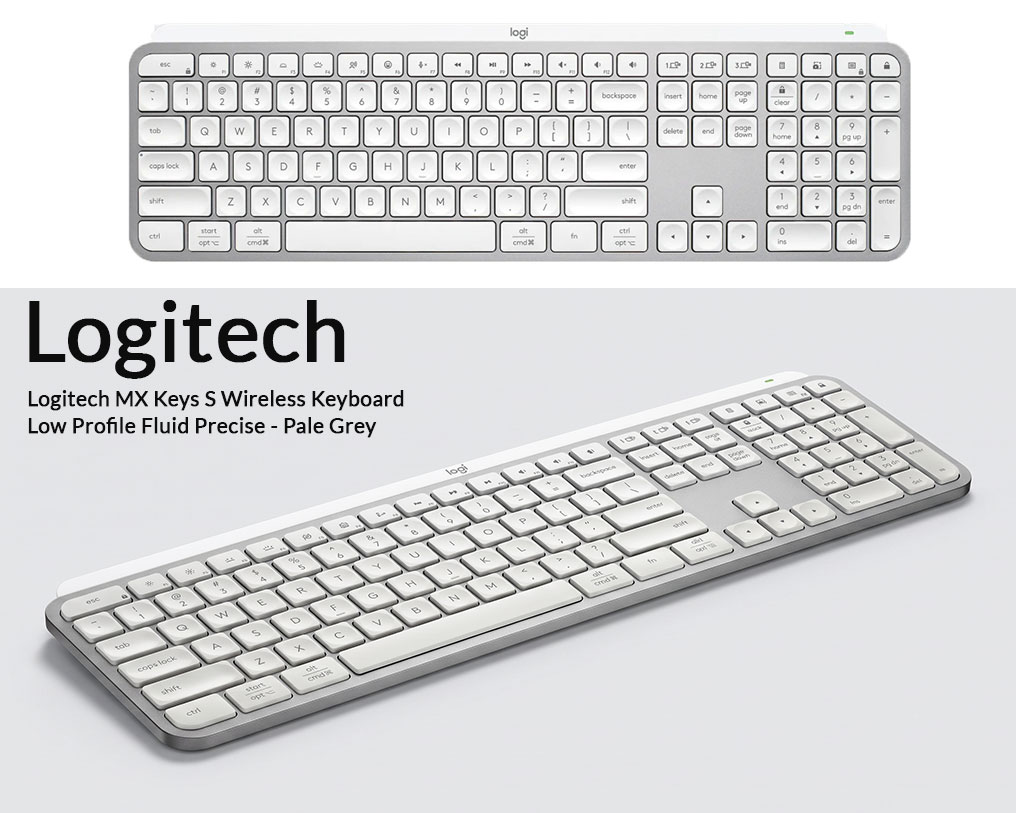
Logitech MX Keys S Review: Best Keyboard for CAD?
Affiliate Disclosure: As an Amazon Associate, I earn from qualifying purchases. This article contains affiliate links, which means PINCAD may earn a commission from qualifying purchases at no additional cost to you.
A reliable keyboard is one of the most important tools in a professional CAD workstation. Whether you are creating architectural floor plans in AutoCAD, managing BIM models in Revit, preparing construction documents, or working on complex engineering projects, your keyboard is constantly in use.
The Logitech MX Keys S Wireless Keyboard is a premium, full-size productivity keyboard designed for comfortable typing, precise key control, and efficient multitasking.
It combines low-profile keys, smart backlighting, customizable function keys, multi-device connectivity, and USB-C recharging.
But is the Logitech MX Keys S actually worth buying for architects, CAD designers, engineers, and Revit professionals? More importantly, does it offer meaningful advantages over an ordinary keyboard?
In this detailed buying guide, we examine its features, specifications, practical CAD applications, advantages, limitations, and alternatives to help you decide whether it deserves a place on your workstation.
Editorial Note: This guide is based on Logitech’s published specifications and independently available product information. It is not presented as a hands-on product test.
1. Is the Logitech MX Keys S Worth Buying?
Quick Verdict: The Logitech MX Keys S is a strong option for designers, engineers, and office professionals who want comfortable, quiet, low-profile typing with productivity-focused wireless features.
For AutoCAD and Revit users, its most useful features are its full-size layout, customizable function keys, stable typing experience, and convenient multi-device switching.
It is particularly attractive if you spend several hours every day using keyboard shortcuts, entering drawing commands, preparing documentation, or working across multiple professional applications.
Best For
- Architects and architectural draftsmen.
- AutoCAD 2D and 3D users.
- Autodesk Revit and BIM professionals.
- Civil, structural, and MEP engineers.
- Interior designers.
- Technical documentation professionals.
- Designers using multiple computers.
However, it may not be the best option if you prefer mechanical switches, need a compact keyboard for travel, or want the lowest-cost keyboard that can handle basic drafting.
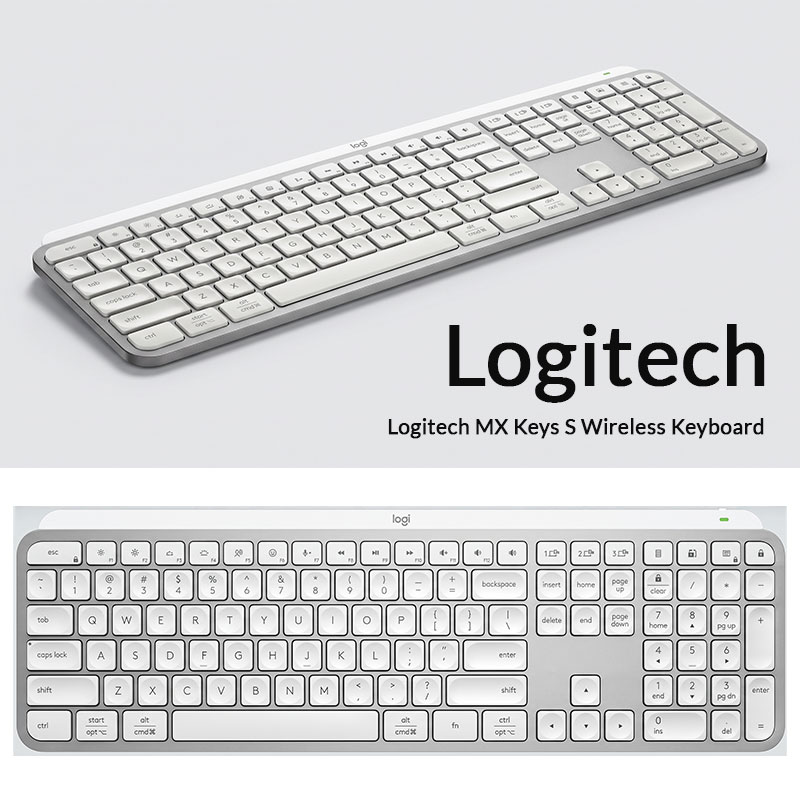
Amazon affiliate link (paid link). Prices and availability may change.

If you are upgrading an architectural or engineering workstation, the MX Keys S is worth comparing with other premium productivity keyboards.
2. Logitech MX Keys S Specifications
Before making a purchasing decision, it is important to understand exactly what the keyboard offers.
| Feature | Logitech MX Keys S |
|---|---|
| Keyboard type | Full-size wireless productivity keyboard |
| Key mechanism | Low-profile scissor-switch keys |
| Layout | Full-size with numeric keypad |
| Connection | Bluetooth Low Energy and Logi Bolt |
| Multi-device support | Up to 3 paired devices |
| Backlighting | Smart white key illumination |
| Lighting control | Automatic and software-adjustable |
| Customization | Logi Options+ |
| Productivity features | Supported Smart Actions and customizable keys |
| Charging port | USB-C |
| Advertised battery life | Up to 10 days with backlighting |
| Without backlighting | Up to 5 months |
| Approximate dimensions | 430.2 × 131.6 × 20.5 mm |
| Approximate weight | 810 g |
| Compatible systems | Windows, macOS and other supported systems |
| Color featured here | Pale Grey |
| Amazon product reference | B0BKVZK4TH |
Specifications are based on the standard MX Keys S model. Exact packaging, key legends, software functionality, and compatibility can vary by version and operating system.
The combination of a complete layout, a numeric keypad, rechargeable battery, and customization software makes the keyboard particularly interesting for desk-based professionals.
3. Design and Build Quality: Made for Professional Workstations
One of the first things that distinguishes the Logitech MX Keys S from an inexpensive office keyboard is its overall design.
It uses a low-profile construction with a slim body and a stable base. The keyboard is intended to sit comfortably on a desk without the height associated with many traditional mechanical keyboards.
Full-Size Layout with Numeric Keypad
The MX Keys S includes a full-size keyboard layout.
For CAD users, this matters because numerical input is frequently part of the drafting process.
For example, architectural drawings often involve:
- Entering wall dimensions.
- Typing exact distances and coordinates.
- Inputting angles and offsets.
- Editing object properties.
- Working with schedules and quantities.
- Preparing measurement calculations.
Having a dedicated numeric keypad can make repeated numerical entry more convenient.
Instead of reaching across the main keyboard for every number, you can use the dedicated keypad while keeping your primary typing area available for command shortcuts.
Stable, Low-Profile Construction
The MX Keys S uses a slim, fixed-angle design with a substantial body.
Its relatively low height can appeal to people who prefer laptop-style keyboards.
However, it does not have the same adjustable typing angle options found on some conventional keyboards.
Comfort remains dependent on desk height, chair position, hand placement, and personal preference.
| IMAGE 02 — KEYBOARD LAYOUT AND NUMERIC KEYPAD |
|---|
| [INSERT IMAGE: Full Top View of Logitech MX Keys S — Showing All Keys and Numeric Keypad] |
| Recommended Size: 1200 × 500 px |
| Alt Text: Logitech MX Keys S full-size wireless keyboard showing numeric keypad and low-profile keys |
4. Low-Profile Keys: Comfortable Typing for Long CAD Sessions
The Logitech MX Keys S uses low-profile scissor-switch keys designed to provide a responsive, relatively quiet typing experience.
Each key has a gently concave surface shaped to help guide your fingertips toward its center.
This design aims to support consistent typing and reduce accidental key presses.
Why Key Feel Matters for CAD Professionals
Architectural drafting is not just about moving a mouse.
Designers repeatedly enter commands, values, filenames, object properties, text notes, and dimensions.
For example, a CAD professional might switch between mouse-based drawing operations and keyboard commands hundreds of times during a working session.
A keyboard with predictable key travel and good stability can make those repeated interactions feel more comfortable.
Quiet Typing in Shared Offices
Many architects and engineers work in shared offices, drawing departments, and design studios.
The MX Keys S generally provides quieter operation than keyboards with loud, clicky mechanical switches.
This can be an advantage when you are working near colleagues or participating in online meetings.
However, it is not completely silent, and the typing feel will differ from a mechanical keyboard.
Is It Ergonomic?
The MX Keys S has a low-profile design, but it is not a split or fully adjustable ergonomic keyboard.
It may feel comfortable for many users, but it should not be considered a guaranteed solution for wrist or hand discomfort.
A neutral typing posture, suitable desk arrangement, and regular breaks remain important.
5. Logitech MX Keys S for AutoCAD: Practical Benefits
AutoCAD professionals depend heavily on keyboard commands.
While the mouse controls object selection, panning, and zooming, the keyboard handles a significant amount of drawing input.
The MX Keys S can support this workflow through its reliable layout, numeric keypad, and configurable productivity controls.
A. Fast Access to Common AutoCAD Commands
AutoCAD includes many keyboard commands and command aliases.
Examples include:
| AutoCAD Command | Common Alias | Purpose |
|---|---|---|
| LINE | L | Create line geometry |
| CIRCLE | C | Draw circles |
| MOVE | M | Move selected objects |
| COPY | CO | Duplicate objects |
| OFFSET | O | Create parallel or offset geometry |
| TRIM | TR | Trim drawing objects |
| ROTATE | RO | Rotate objects |
| ERASE | E | Delete selected objects |
These are examples of AutoCAD commands, not exclusive features of the MX Keys S.
The main benefit of a good keyboard is that frequently used commands can be entered comfortably and consistently.
B. Numeric Input for Accurate Drafting
Consider an architect drawing a residential floor plan.
The drawing may require accurately entering room dimensions, wall thicknesses, door sizes, and spacing between structural elements.
For example, in an appropriately configured AutoCAD drawing, the user might enter a precise distance such as 3500 or 4500 drawing units.
A full-size keyboard with a dedicated numeric keypad can be convenient for this repetitive input.
Important: Drawing accuracy comes from AutoCAD’s coordinate system, units, object snaps, and constraints—not from the keyboard itself.
C. Function Keys for Drafting Controls
AutoCAD users also rely on function-key shortcuts.
Depending on the software configuration, common default examples include:
- F3 — Object Snap toggle.
- F7 — Grid Display toggle.
- F8 — Ortho Mode toggle.
- F9 — Snap Mode toggle.
- F10 — Polar Tracking toggle.
- F11 — Object Snap Tracking toggle.
The MX Keys S supports function-key behavior, although the default media-key and function-key settings may need adjustment depending on your system.
D. Working with Large Drawing Projects
Architectural projects frequently require switching among drawings, reference documents, specifications, schedules, and project folders.
The MX Keys S supports a full desktop keyboard workflow, making it suitable for professionals who use these applications throughout the day.
AutoCAD Verdict: The MX Keys S is a practical premium keyboard for users who value a full-size numeric layout, comfortable typing, and customizable productivity controls. It does not automatically make AutoCAD faster, but it can be a useful part of a well-organized workstation.
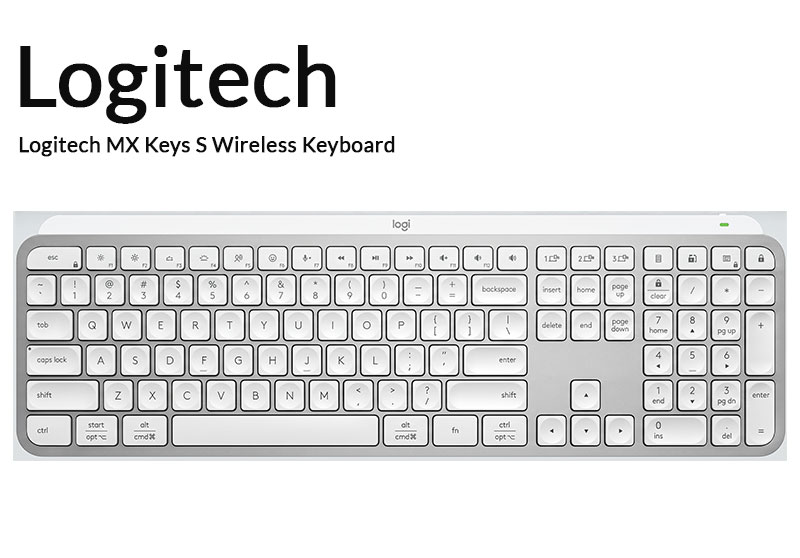
Looking to Upgrade Your CAD Keyboard?
The Logitech MX Keys S offers a full-size layout, rechargeable wireless design, and customizable controls for professional desktop work.
Amazon affiliate link (paid link).
6. Logitech MX Keys S for Revit and BIM Professionals
Autodesk Revit uses numerous keyboard shortcuts to access modeling, annotation, and documentation tools.
The MX Keys S is particularly relevant for Revit users who prefer a low-profile keyboard rather than a mechanical one.
Common Revit Keyboard Shortcuts
Some default Revit shortcuts include:
| Revit Shortcut | Function |
|---|---|
| WA | Wall |
| DR | Door |
| WN | Window |
| DI | Aligned Dimension |
| MV | Move |
| CO | Copy |
| AL | Align |
| TR | Trim/Extend to Corner |
Keyboard shortcuts can be customized in Revit, so your actual assignments may differ.
How the MX Keys S Fits a Revit Workflow
Imagine working on a hospital or commercial building BIM model.
You might spend your day:
- Creating and editing architectural elements.
- Entering dimensions and parameter values.
- Navigating between floor plans and 3D views.
- Editing Revit families.
- Reviewing schedules and drawing sheets.
- Preparing construction documentation.
A comfortable keyboard can support all these activities.
The numeric keypad is particularly useful when entering parameter values, dimensions, elevations, and quantities.
Can You Use Custom Keys with Revit?
Logi Options+ offers customization for supported keys and actions.
You may be able to configure frequently used shortcuts or supported automation sequences.
For example, you might create a shortcut that opens your project folder, launches a reference application, or performs a supported sequence of actions.
However, the exact behavior depends on the selected application, operating system, and software support.
Revit Verdict: The MX Keys S is a good candidate for BIM professionals who spend long hours using standard keyboard shortcuts and entering numerical data.
It is not a Revit-specific keyboard, but its general productivity features can support a professional BIM workstation.
7. Smart Backlighting: Useful for Evening and Low-Light Work
One of the most distinctive features of the MX Keys S is its smart illumination system.
The keyboard includes proximity and ambient light sensing.
Its backlighting can activate when your hands approach the keyboard and adjust brightness according to the surrounding environment.
Why Smart Lighting Is Useful
Some designers work in environments where lighting changes throughout the day.
For example:
- Architectural studios with adjustable lighting.
- Home offices used during evening hours.
- Workstations with multiple monitors.
- Design departments where overhead lighting is reduced.
Backlit keys can make it easier to identify less familiar symbols and function keys under these conditions.
Customizing the Backlight
Using the supported Logi Options+ software, users can adjust available backlighting settings, including brightness and duration.
This gives greater control over how the keyboard behaves.
Important Limitation
The MX Keys S has white backlighting.
It is not an RGB gaming keyboard with individually programmable colored lighting effects.
If colorful lighting is important to your setup, you may prefer a different product.
8. Logi Options+ and Smart Actions: Can They Improve Productivity?
Logitech’s Logi Options+ software allows supported customization of the MX Keys S.
This is potentially one of the keyboard’s most useful features for productivity-focused professionals.
What Are Smart Actions?
Smart Actions are programmable sequences that can automate supported repetitive tasks.
Instead of performing several actions manually, you can configure a sequence and assign it to a supported trigger.
For example, a typical workstation setup might involve:
- Opening a design application.
- Launching a project folder.
- Opening a web browser.
- Preparing reference materials.
- Activating a preferred workspace arrangement.
Smart Actions may help automate parts of such routines, depending on what the software supports.
Example: Architectural Office Workflow
Suppose you normally begin work by opening AutoCAD, a project directory, and a browser with technical resources.
A configured Smart Action may reduce the number of separate steps needed to open those tools.
This is a productivity benefit rather than an improvement to drawing performance.
Can Smart Actions Run AutoCAD Commands?
Some keyboard shortcuts and keystroke sequences may be configurable.
However, complex CAD command automation is not guaranteed.
Application focus, command prompts, software settings, and shortcut conflicts can affect the result.
If you need advanced AutoCAD automation, native tools such as AutoLISP, scripts, or application-specific customization may be more suitable.
Recommendation: Treat Smart Actions as a convenience feature for supported repetitive tasks rather than a replacement for dedicated CAD automation.
9. Multi-Device Connectivity: One Keyboard for Three Devices
The MX Keys S supports pairing with up to three devices.
Its Easy-Switch keys let you change the active device without repeatedly going through the full pairing process.
Practical Example
A professional designer might use:
- Device 1 — Office workstation running AutoCAD.
- Device 2 — Laptop used for remote design work.
- Device 3 — Another computer or supported tablet for documents and communication.
The ability to move between paired devices can be particularly useful for hybrid work.
Bluetooth or Logi Bolt?
The standard MX Keys S supports two connection methods.
Bluetooth Low Energy
Connect directly to a compatible computer or supported device without occupying a USB receiver port.
Logi Bolt Receiver
Use a compatible Logi Bolt receiver for a dedicated wireless connection.
The standard retail MX Keys S package normally includes a Logi Bolt receiver, but buyers should confirm the exact listing and package contents.
Can You Use It with Windows and Mac?
Yes. The standard MX Keys S supports Windows and macOS.
Basic keyboard operation is also supported on several other operating systems.
However, Logi Options+ customization is mainly intended for supported Windows and macOS environments.
Important Buying Consideration: Keyboard Layout
The standard MX Keys S and the dedicated MX Keys S for Mac are different product variants.
The Mac-focused edition has Mac-specific key labeling and may offer different package contents and connection options.
If you primarily use Windows-based AutoCAD or Revit, make sure you choose a layout that suits your system.
For the product featured in this article, the linked Amazon listing is the Pale Grey standard MX Keys S.
10. Battery Life and USB-C Charging
The MX Keys S uses a rechargeable battery.
According to Logitech’s advertised figures, battery life can reach approximately:
- Up to 10 days with backlighting under stated usage conditions.
- Up to 5 months with backlighting disabled.
Actual battery life depends on usage patterns, illumination settings, working environment, and other factors.
Why Battery Life Matters
A professional keyboard should not regularly interrupt your work.
If you spend long periods preparing drawing packages, construction details, or BIM documentation, rechargeable wireless operation can be convenient.
The MX Keys S charges using a USB-C cable.
Can You Use It While Charging?
The keyboard can continue working through its wireless connection while charging.
The USB-C connection is intended for charging rather than functioning as a conventional wired keyboard data connection.
For people who prefer an entirely wired setup, this is worth considering before purchase.
11. Logitech MX Keys S vs MX Keys vs MX Mechanical
Choosing the right keyboard depends on the typing experience you prefer.
The MX Keys S is not the only productivity-focused keyboard available from Logitech.
Here is a practical comparison.
| Feature | Original MX Keys | MX Keys S | MX Mechanical |
|---|---|---|---|
| Keyboard type | Low-profile | Low-profile | Low-profile mechanical |
| Typing feel | Laptop-style | Laptop-style | Mechanical switches |
| Smart illumination | Yes | Yes, with updated controls | Yes |
| Customizable productivity features | Supported, varies | Smart Actions | Smart Actions |
| Dedicated numeric keypad | Yes | Yes | Yes, full-size model |
| Multi-device connection | Yes | Yes | Yes |
| Main buying reason | Older model value | Balanced productivity | Mechanical typing preference |
MX Keys S vs Original MX Keys
The MX Keys S builds on the original MX Keys design.
It retains the familiar full-size low-profile typing experience while adding updated software-oriented productivity features and expanded backlighting controls.
If you already own a fully functioning original MX Keys, upgrading may not be essential.
The decision depends on whether you want the newer features and whether the additional cost is justified.
MX Keys S vs MX Mechanical
The MX Mechanical uses mechanical switches that offer a different typing feel.
Some users appreciate the distinct feedback associated with mechanical keyboards.
Others prefer the shorter, quieter, laptop-like key action of the MX Keys S.
For architects and CAD designers, neither typing mechanism is inherently more accurate for entering drawing dimensions.
The most important factors are comfort, reliability, and personal typing preference.
Which One Would We Choose for CAD?
The MX Keys S is the more natural choice for someone who values low-profile keys and relatively quiet office operation.
The MX Mechanical is worth considering if you specifically prefer mechanical key switches.
12. Logitech MX Keys S: Pros and Cons
Before making your purchase, consider both the advantages and limitations.
Advantages
1. Full-Size Layout
The dedicated numeric keypad is useful for dimensional input, calculation, and technical documentation.
2. Comfortable Low-Profile Keys
The scissor-switch design is appealing to users who prefer laptop-style typing.
3. Relatively Quiet Operation
Well suited to many shared office and home-office environments.
4. Smart Backlighting
Automatic illumination provides convenient visibility in changing light conditions.
5. Customizable Productivity Controls
Logi Options+ can help simplify supported repetitive actions and keyboard settings.
6. Multi-Device Switching
The ability to switch among three paired devices is useful for multi-computer workflows.
7. Rechargeable Battery
USB-C charging eliminates the need for routine disposable battery replacement.
8. Professional Appearance
Its slim design fits well into modern design studios and office workstations.
Disadvantages
1. Premium Price Category
There are many less expensive full-size wireless keyboards.
2. Not Mechanical
Users who want tactile mechanical switches may prefer a different model.
3. No Dedicated Adjustable Tilt Feet
The typing angle is less flexible than that of some traditional keyboards.
4. No Standard Built-In Wrist Rest
Users who want a separate palm rest may need to purchase one.
5. Advanced Software Features Have Compatibility Limits
Logi Options+ customization is not equally available on every operating system.
6. No Built-In RGB Lighting
Only white smart illumination is available.
7. Not a Specialized CAD Keyboard
It does not include dedicated AutoCAD or Revit command keys out of the box.
8. Integrated Rechargeable Battery
It is not designed around routine user replacement of the battery.
13. Who Should Buy the Logitech MX Keys S?
The MX Keys S makes the most sense when its productivity features match your daily workflow.
Buy It If You Are an AutoCAD Professional
You frequently use keyboard shortcuts, enter dimensions, work with numeric coordinates, and spend many hours at a desktop workstation.
The full-size layout and low-profile key design may be a good fit.
Buy It If You Work with Revit and BIM
You regularly enter parameters, use keyboard shortcuts, prepare schedules, and switch between 2D and 3D project views.
The MX Keys S supports these standard keyboard tasks.
Buy It If You Prefer Quiet Typing
You work in an office and do not want the louder sound associated with clicky mechanical switches.
Buy It If You Use Multiple Computers
You want one wireless keyboard that can easily switch between several paired devices.
Buy It If You Want a Premium Office Keyboard
You prefer rechargeable accessories, smart backlighting, and software-based customization.
14. Who Should Skip the MX Keys S?
The keyboard is not the ideal choice for everyone.
Skip It If You Only Need Basic Typing
If you use your keyboard occasionally and do not need premium features, a lower-cost model may be sufficient.
Skip It If You Need a Compact Keyboard
The full-size MX Keys S includes a numeric keypad and takes up more desk space than a compact model.
A smaller keyboard may be better if you frequently travel or work at a small desk.
Skip It If You Prefer Mechanical Switches
The MX Keys S is a scissor-switch keyboard.
If mechanical feedback is important to you, consider a mechanical alternative.
Skip It If You Want Hardware-Level CAD Macros
For extensive program-specific shortcut automation, specialized input devices or dedicated programmable keyboards may be better suited.
Skip It If You Need Extensive Ergonomic Adjustment
If you require a split layout, tenting, adjustable feet, or unusual hand positioning, a more specialized ergonomic keyboard may be preferable.
15. Is the Logitech MX Keys S Worth the Price?
The MX Keys S sits in the premium productivity keyboard category.
Whether it offers good value depends on how often you use its extra features.
A professional CAD user may spend many hours per week entering commands, dimensions, notes, and project information.
If the keyboard’s typing feel, full-size layout, device switching, and configurable features genuinely improve daily comfort and convenience, the purchase may make sense.
However, it is important not to assume that spending more on a keyboard automatically improves productivity.
A comfortable, reliable keyboard that matches your workflow is usually more valuable than an expensive product with features you rarely use.
Before Purchasing, Check:
- The exact keyboard model and color.
- Whether the keyboard layout suits Windows or Mac.
- The included wireless receiver.
- Seller and warranty details.
- Return policy.
- Current product price.
- Availability in your country.
We recommend comparing the current Amazon offer with other reputable sellers before making the final decision.
16. Frequently Asked Questions
Is the Logitech MX Keys S good for AutoCAD?
Yes. The MX Keys S is a suitable productivity keyboard for AutoCAD because it offers a full-size layout, numeric keypad, low-profile keys, and customizable functions. It does not include exclusive AutoCAD commands by default.
Is the MX Keys S good for Revit?
Yes. It supports standard Revit keyboard shortcuts, numerical parameter entry, and other everyday BIM tasks. Revit-specific workflow improvements depend on your shortcut setup and personal preferences.
Is the Logitech MX Keys S mechanical?
No. It uses low-profile scissor-switch keys rather than traditional mechanical switches.
Does Logitech MX Keys S have a numeric keypad?
Yes. The full-size model includes a dedicated numeric keypad, useful for entering numbers, dimensions, and calculations.
Does the MX Keys S work with Windows 11?
Yes. The standard MX Keys S is compatible with supported Windows systems, including Windows 11.
Can I use the MX Keys S with a Mac?
Yes. The standard version supports macOS. Logitech also offers a separate MX Keys S for Mac edition with Mac-oriented key labeling.
Does the MX Keys S support Bluetooth?
Yes. It supports Bluetooth Low Energy and can connect through a compatible Logi Bolt receiver.
How many devices can the MX Keys S connect to?
It can pair with up to three devices and switch between them using its Easy-Switch controls.
How long does the battery last?
Logitech advertises up to approximately 10 days with backlighting and up to five months with backlighting disabled. Actual results depend on usage.
Can I customize keys for AutoCAD or Revit?
Supported keys can be customized through Logi Options+. Some shortcuts and automated sequences may be configured, but software compatibility and application behavior must be checked.
Is MX Keys S better than MX Mechanical for CAD?
Not necessarily. The MX Keys S offers low-profile scissor-switch typing, while the MX Mechanical provides mechanical key feedback. The better choice depends mainly on typing preference and working environment.
Does the MX Keys S include a wrist rest?
The standard standalone keyboard does not normally include a separate wrist rest. Check the exact package contents because bundles can differ.
Does the MX Keys S have RGB lighting?
No. It offers white smart backlighting rather than multicolor RGB illumination.
Is Logitech MX Keys S worth buying in 2026?
It remains a worthwhile option for professionals who want premium low-profile typing, a full numeric keypad, smart illumination, and multi-device connectivity. Its value depends on the current selling price and available alternatives.
17. Final Verdict: Should CAD and Revit Professionals Buy the Logitech MX Keys S?
The Logitech MX Keys S Wireless Keyboard is a compelling productivity keyboard for architects, engineers, AutoCAD designers, and Revit professionals who spend long hours working at a computer.
Its major strengths are its full-size low-profile layout, numeric keypad, comfortable typing characteristics, smart backlighting, configurable controls, rechargeable battery, and multi-device connectivity.
For CAD and BIM users, these features can contribute to a more convenient daily workflow.
However, the MX Keys S is not a dedicated CAD command keyboard, and its premium price will not be justified for everyone.
If you prefer a full-size, relatively quiet keyboard with professional productivity features, it is a strong option to consider.
If you want mechanical switches, a compact form factor, or extensive hardware-level macro controls, compare alternatives before purchasing.
Our Recommendation
Best for: AutoCAD, Revit, BIM, architectural drafting, engineering, and everyday professional desktop work.
Consider alternatives if: You need mechanical key switches, extensive ergonomic adjustments, or a budget-friendly basic keyboard.
Ready to Upgrade Your CAD Workstation?
Compare the available Logitech MX Keys S variants, current offers, package contents, and customer feedback before buying.
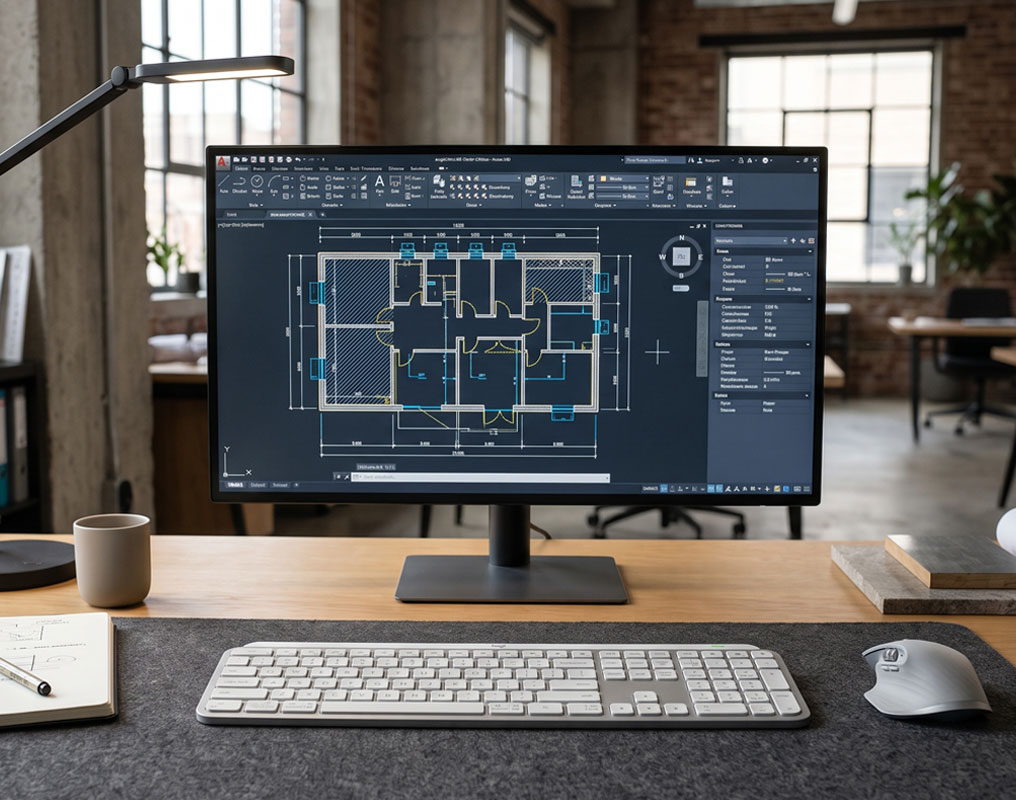
Amazon affiliate link (paid link). Product prices and availability are subject to change.
About PINCAD
PINCAD provides CAD blocks, drawing resources, and practical content for architects, engineers, draftsmen, and design professionals.
Explore our free CAD resources at PINCAD.com to support your next design project.
