
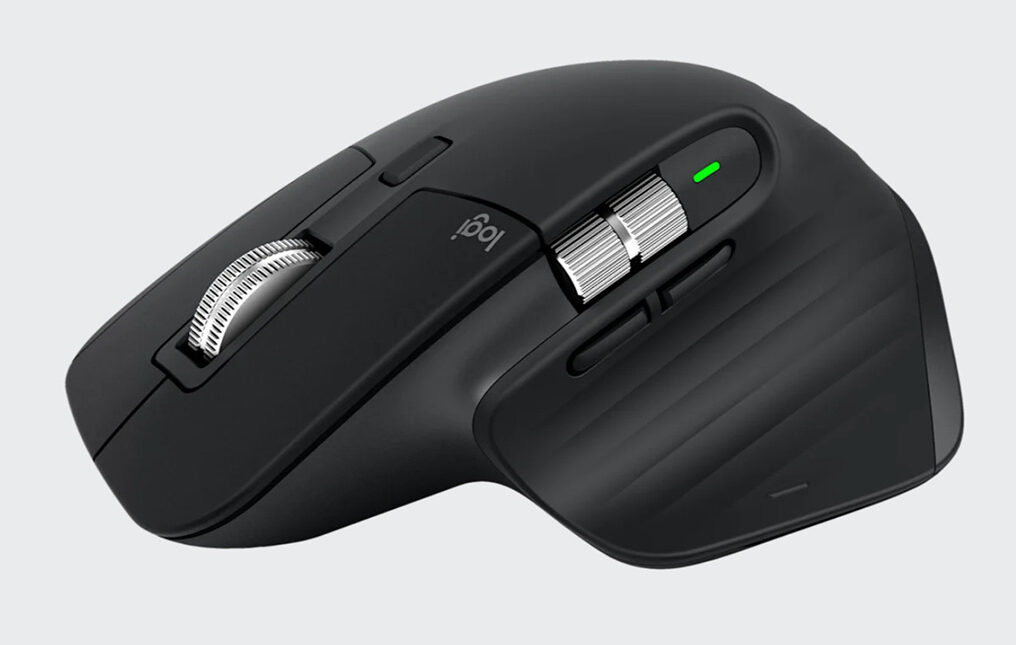
Logitech MX Master 3S Wireless Mouse
Disclosure: As an Amazon Associate I earn from qualifying purchases. This guide is based on published specifications and independent product evaluations, not hands-on testing by PINCAD.
If you spend several hours every day working with AutoCAD, Revit, architectural drawings, 3D models, or other design applications, you already know how important a comfortable and reliable mouse can be.
A standard mouse handles basic clicking, scrolling, and navigation. However, professional design workflows often involve repeated zooming, panning, selecting objects, switching between applications, and navigating complex drawings.
The Logitech MX Master 3S Wireless Mouse is designed for productivity-focused users who want more control over these everyday tasks.
With an ergonomic shape, an 8,000 DPI optical sensor, quiet clicks, two scroll wheels, customizable controls, and long battery life, the MX Master 3S offers features that may be particularly useful for architects, engineers, CAD designers, and BIM professionals.
But is it really worth buying? And does it offer enough practical advantages over an ordinary mouse?
In this buying guide, we examine its specifications, design, CAD-related capabilities, limitations, and overall value to help you make an informed purchase decision.
1. Is the Logitech MX Master 3S Worth Buying?
Quick Verdict: The Logitech MX Master 3S is a strong choice for right-handed professionals who spend long hours working at a computer and value customizable controls, comfortable hand support, and flexible navigation.
For CAD and BIM users, its greatest attraction is not simply the 8,000 DPI sensor. The combination of an ergonomic shape, configurable buttons, a reliable middle mouse button, and application-specific settings is what makes it interesting.
Best suited for:
- Architects and architectural draftsmen.
- AutoCAD and Revit professionals.
- Interior designers and 3D modeling users.
- Engineers working with technical drawings.
- Graphic designers and office professionals.
- People who regularly switch between multiple computers.
It may not be the ideal choice for left-handed users, people with very small hands, or those looking for an inexpensive basic mouse.
The newer MX Master 4 is also worth comparing before purchasing, especially if the price difference is small.
Ready to compare prices?

2. Logitech MX Master 3S: Key Features and Specifications
Before deciding whether the MX Master 3S fits your workflow, consider its technical features.
| Feature | Specification |
|---|---|
| Product | Logitech MX Master 3S |
| Type | Wireless productivity mouse |
| Sensor | Darkfield high-precision optical sensor |
| Sensitivity | 200–8,000 DPI |
| Design | Ergonomic, right-handed |
| Scrolling | MagSpeed electromagnetic scroll wheel |
| Secondary wheel | Horizontal thumb wheel |
| Buttons | Customizable controls and gesture button |
| Connectivity | Bluetooth Low Energy; Logi Bolt on supported variants |
| Device switching | Up to 3 paired devices |
| Battery | Rechargeable 500 mAh Li-Po |
| Battery life | Up to 70 days |
| Charging | USB-C |
| Weight | Approximately 141 g |
| Customization | Logi Options+ on supported systems |
The MX Master 3S combines several productivity-oriented features that are uncommon on basic wireless mice.
Its sensor can track on many surfaces, including glass at least 4 mm thick. Its MagSpeed wheel supports both precise step-by-step scrolling and fast free-spinning scrolling.
The customizable buttons are particularly interesting for professionals who frequently repeat the same tasks.
Note: Specifications and package contents can differ between standard, Bluetooth-only, Mac, and Business versions.
3. Ergonomic Design: Comfort for Long Working Hours
One of the main reasons to consider the Logitech MX Master 3S is its sculpted ergonomic design.
Architects and CAD professionals can spend much of their working day moving a cursor between drawing areas, toolbars, properties panels, and project files.
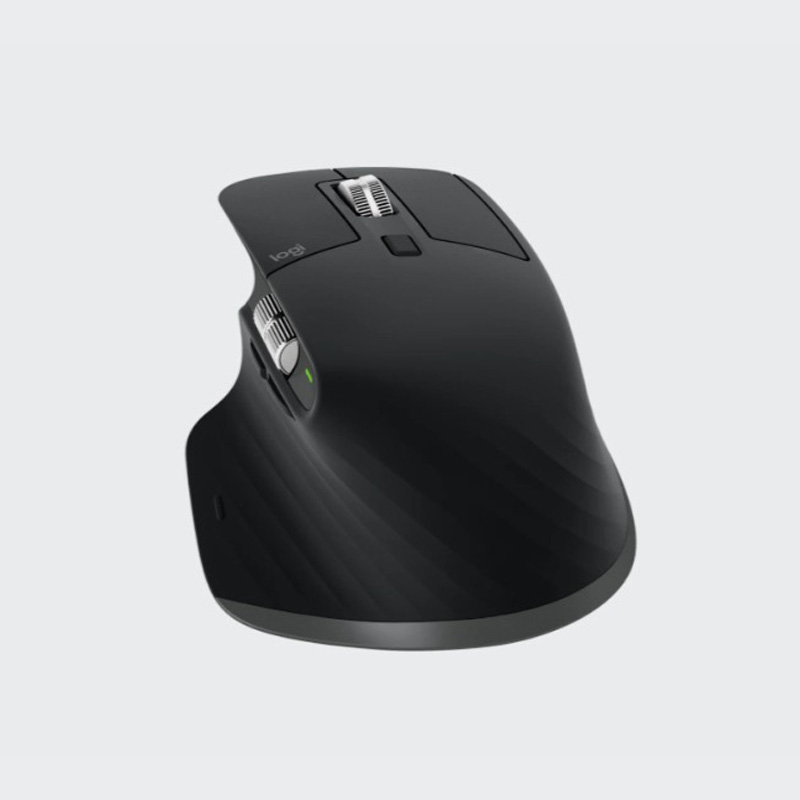
The MX Master 3S has a contoured body that supports a right-handed palm grip, along with a dedicated thumb rest.
Why the Shape Matters
Unlike a small, flat mouse, the MX Master 3S provides a larger surface for your hand.
This can offer a more supported grip for people who find compact mice uncomfortable during prolonged desktop work.
Its thumb rest also positions the side controls within reach without requiring a large change in grip.
However, comfort is personal. Hand size, grip style, desk height, and working habits all affect how a mouse feels.
Important Ergonomic Considerations
The mouse weighs approximately 141 grams, making it heavier than many conventional office mice.
Some users appreciate this solid feel, while others prefer a lightweight mouse that requires less effort to move.
The MX Master 3S is also designed primarily for right-handed users.
If you are left-handed or have particularly small hands, another model may offer a better fit.
Our assessment: The design is appealing for desk-based CAD work, but its relatively large size makes checking your hand fit important before buying.
4. 8,000 DPI Optical Sensor: Does It Help with CAD Work?
The MX Master 3S includes an adjustable optical sensor with a maximum sensitivity of 8,000 DPI.
DPI stands for Dots Per Inch and describes how far the cursor moves relative to physical mouse movement.
A higher DPI setting generally produces more cursor movement for the same distance traveled on the desk.
Benefits for Large Monitors
Many CAD professionals work with large monitors or multiple displays.
Moving between a drawing window, Properties palette, layer controls, browser, and reference documents can require considerable cursor travel.
Adjustable sensitivity allows users to choose a cursor speed that suits their monitor arrangement and working preferences.
For example, a user with two large monitors may prefer higher sensitivity than someone working on a single small display.
Does Higher DPI Mean More Accurate Drawings?
Not necessarily.
AutoCAD and Revit rely on application features such as object snaps, dimensions, constraints, and coordinate input for actual geometric accuracy.
A higher-DPI mouse does not make a wall dimension or construction drawing mathematically more accurate.
Instead, adjustable sensitivity can help the cursor feel more responsive and comfortable during navigation.
Practical recommendation: Start with a moderate sensitivity level and adjust gradually. The maximum 8,000 DPI setting is not automatically the best choice for detailed drafting.
5. MagSpeed Scrolling: A Useful Navigation Feature
The MX Master 3S includes Logitech’s MagSpeed electromagnetic scroll wheel.
It supports two main scrolling behaviors.
Ratchet Mode
Ratchet mode provides distinct scrolling steps.
This is useful when you want controlled movement through documents, lists, and interface panels.
For AutoCAD and Revit, predictable wheel movement is especially important because the wheel is commonly used for zooming.
Free-Spin Mode
The wheel can also switch to very fast, nearly frictionless scrolling.
Logitech rates the mechanism for scrolling up to 1,000 lines per second in suitable content.
This can be convenient when browsing long technical documents, schedules, specification sheets, websites, or spreadsheets.
However, faster scrolling does not necessarily improve CAD drawing zoom behavior.
For technical drafting, a more controlled wheel setting may be preferable.
Horizontal Thumb Wheel
Another distinguishing feature is the separate thumb wheel.
In supported applications, it can provide horizontal scrolling or other customizable actions.
For example, designers working with wide spreadsheets, editing timelines, or supported creative applications may benefit from horizontal navigation.
In CAD applications, its usefulness depends on the software and configured controls.
Important: Do not assume that the thumb wheel will automatically pan AutoCAD or Revit drawings horizontally. These applications may require specific mappings, and some functions may not support wheel-based navigation as expected.
6. Is Logitech MX Master 3S Good for AutoCAD?
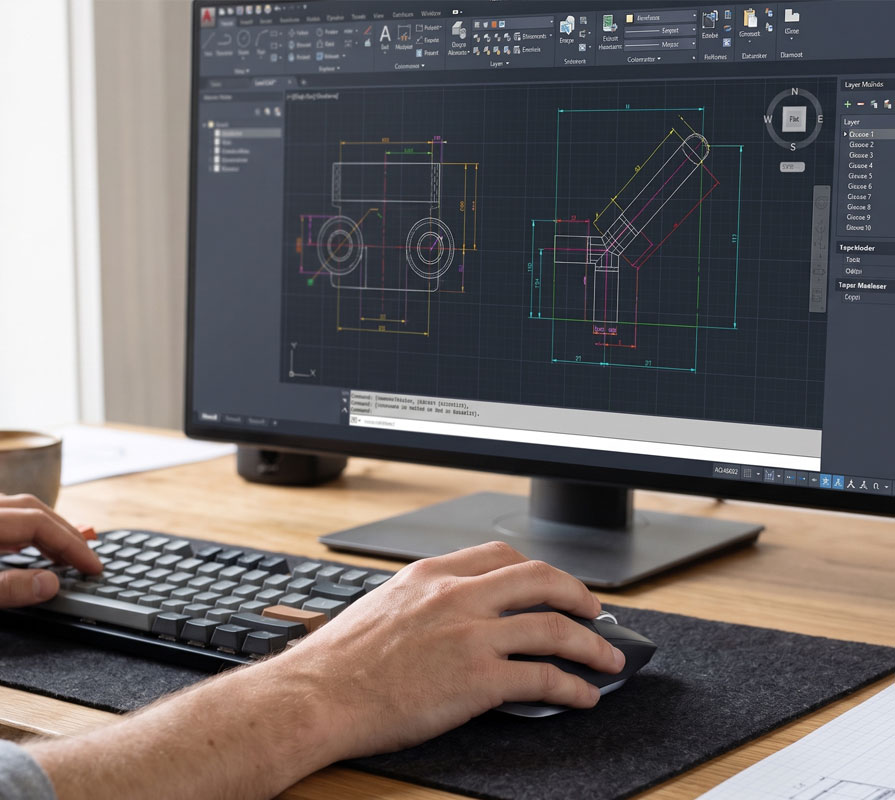
For AutoCAD users, a mouse is one of the most frequently used input devices.
Drawing, selecting, zooming, panning, and navigating layouts all depend on efficient cursor control.
The MX Master 3S has several features that make it worth considering for this type of work.
A. Zooming Through Drawings
AutoCAD normally uses the mouse wheel to zoom in and out.
The MX Master 3S provides a dedicated vertical scroll wheel with adjustable scrolling behavior.
You can use it to navigate between overall drawing views and smaller design details.
For precision work, test the wheel in Ratchet mode and adjust AutoCAD’s zoom sensitivity if necessary.
B. Panning Around Large Drawings
In standard AutoCAD configurations, pressing and holding the middle mouse button allows you to pan across a drawing.
This is an essential function when working with large floor plans, elevations, sections, or site drawings.
A critical setup detail: Keep the MX Master 3S middle-click function assigned correctly.
If Logitech software reassigns the wheel-click button to another action, panning may stop working as expected.
AutoCAD’s MBUTTONPAN setting should normally be set to 1 for standard middle-button panning.
C. Customizable Buttons for Frequently Used Commands
The MX Master 3S includes controls that can be customized using Logi Options+.
Depending on software compatibility, you may be able to assign supported keystrokes or shortcuts to selected buttons.
For example, a CAD user might explore mappings for:
- Escape to cancel a command.
- A preferred keyboard shortcut for a frequently used tool.
- Switching between applications.
- Navigating back and forward in file browsers or documentation.
These are potential customizations, not guaranteed default AutoCAD functions.
Always verify the configured shortcut inside AutoCAD and avoid overriding essential drawing controls.
D. Working Across Multiple Displays
Many professional CAD workstations use two monitors.
One might display AutoCAD, while the other shows drawing references, schedules, PDF documents, or technical specifications.
The MX Master 3S provides adjustable pointer sensitivity that may make navigation between these windows more convenient.
AutoCAD Recommendation
The MX Master 3S is a promising premium productivity mouse for AutoCAD users who value comfort and configurable controls.
Its benefits are primarily related to workflow convenience—not faster CAD rendering or improved geometric accuracy.
7. Is Logitech MX Master 3S Good for Revit and BIM?
Revit users interact with floor plans, elevations, sections, schedules, families, and 3D models.
A comfortable mouse with dependable navigation controls can be helpful in these workflows.
Zooming and Panning in Revit
Revit uses the mouse wheel for zooming.
Pressing and holding the middle mouse button allows you to pan the active view.
These standard interactions work naturally with a conventional middle-button configuration.
Navigating 3D Models
In Revit’s 3D views, holding Shift while pressing and dragging the middle mouse button is a standard method for orbiting a model.
The MX Master 3S supports middle-button interaction, making this navigation method available when correctly configured.
For anyone working regularly with Revit families, architectural models, or MEP layouts, preserving this behavior is important.
Revit Shortcuts and Custom Controls
Revit supports keyboard shortcuts for many commands.
A configurable mouse may allow some of these shortcuts to be assigned to extra buttons where supported.
Possible examples include a user-defined shortcut for an often-used tool, switching applications, or moving between reference materials.
However, Logitech does not automatically provide a dedicated, fully optimized Revit drafting profile for every workflow.
You may need to configure and test your preferred settings.
Revit Recommendation
If you spend long periods working in Revit and prefer a substantial, right-handed mouse, the MX Master 3S deserves consideration.
Its configurable controls are useful additions, but they do not replace Revit’s native navigation tools or keyboard shortcuts.
8. Custom Buttons and Logi Options+: Personalize Your Workflow
One of the strongest selling points of the MX Master 3S is its compatibility with Logitech’s Logi Options+ customization software on Windows and macOS.
The software allows supported users to adjust mouse behavior, configure buttons, create gestures, and define application-specific settings.
How to Customize Your MX Master 3S
Step 1 — Install Logi Options+
Download the software from Logitech’s official website.
Step 2 — Connect Your Mouse
Pair the mouse using Bluetooth or a compatible Logi Bolt receiver.
Step 3 — Choose Your Preferred Settings
Adjust pointer speed, wheel behavior, and supported button assignments.
Step 4 — Add Application-Specific Customization
Where supported, create individual settings for applications such as AutoCAD, Revit, Photoshop, or your everyday browser.
Step 5 — Test Essential Commands
Open your CAD application and confirm that zoom, pan, middle-click, and other important controls continue functioning correctly.
Why Customization Can Be Valuable
A CAD designer may perform hundreds of repeated mouse and keyboard actions during a normal working day.
Reducing unnecessary movement between the keyboard and mouse can make the workflow feel more convenient.
The biggest benefit comes from assigning shortcuts that match your own working habits instead of using generic settings.
Remember that some advanced software features depend on application compatibility and operating system support.
9. Quiet Clicks: A More Comfortable Office Environment
The MX Master 3S features Logitech’s Quiet Click technology.
According to Logitech, its left and right clicks produce approximately 90% less sound power than those of the earlier MX Master 3 under the company’s testing conditions.
This can be useful for professionals working in:
- Shared architectural offices.
- Engineering departments.
- Home offices.
- Quiet design studios.
- Workspaces used for frequent video meetings.
Quiet clicks do not directly improve drafting accuracy.
However, they may make repetitive clicking less distracting to the user and people nearby.
10. Battery Life and Wireless Connectivity
The Logitech MX Master 3S uses a rechargeable battery and charges through USB-C.
Logitech advertises battery life of up to 70 days on a full charge, depending on usage and operating conditions.
Its fast-charging feature can provide approximately three hours of use after one minute of charging under Logitech’s stated conditions.
Bluetooth and Logi Bolt
The MX Master 3S supports Bluetooth Low Energy.
Many standard versions also include a Logi Bolt USB receiver for connecting to a compatible computer.
However, some Bluetooth-only and Mac variants do not include a USB receiver in the package.
Check the exact model and included accessories before ordering.
Connect Up to Three Devices
The Easy-Switch system allows the mouse to be paired with up to three devices.
You can switch between the paired devices using the mouse’s device-selection control.
This is useful if you work on a desktop computer during office hours and use a separate laptop at home.
For example, an architect could use the same mouse with an office workstation and a personal laptop without buying separate devices.
11. Real Advantages for Architects, Engineers, and Designers
The MX Master 3S may be a worthwhile investment when its features match your actual work.
Here are five practical scenarios.
Scenario 1 — Architectural Floor Plan Drafting
You spend much of the day navigating between a building’s overall floor plan and detailed areas.
A comfortable grip, configurable pointer speed, and correctly configured wheel may help make repeated navigation more convenient.
Scenario 2 — Revit Family Modeling
You frequently zoom into family geometry, pan around views, and orbit 3D models.
A reliable middle mouse button and a comfortable shape are important considerations for this workflow.
Scenario 3 — Working with CAD and PDF References
You use AutoCAD on one monitor while viewing construction details and PDF specifications on another.
The mouse’s adjustable sensitivity and wireless operation can be convenient in a multi-display workspace.
Scenario 4 — Design Presentations and Documentation
You prepare drawing reports, schedules, presentations, and large documents.
The MagSpeed scrolling mechanism and supported thumb-wheel actions can be useful beyond CAD software.
Scenario 5 — Switching Between Office and Home Computers
You regularly use multiple computers for design work.
Easy-Switch pairing means you can use one mouse with several registered devices.
The practical value: This is a mouse designed for a broad professional workflow rather than a specialized device that only performs CAD commands.
12. Logitech MX Master 3S: Pros and Cons
No mouse is perfect for everyone. Before making a purchase, consider both its strengths and limitations.
Pros
- Comfortable, sculpted design for many right-handed users.
- Adjustable 8,000 DPI optical sensor.
- MagSpeed scroll wheel with multiple scrolling modes.
- Secondary thumb wheel.
- Customizable buttons and gesture controls.
- Quiet left and right clicks.
- Long advertised battery life.
- USB-C rechargeable battery.
- Bluetooth and multi-device pairing.
- Useful for a variety of productivity applications.
Cons
- More expensive than basic office mice.
- Large shape may not suit smaller hands.
- Right-handed design with no dedicated left-handed equivalent.
- Heavier than many lightweight mice.
- Advanced functions may require configuration.
- Thumb-wheel behavior varies by application.
- Some variants do not include a Logi Bolt receiver.
- Not intended for competitive gaming.
- The built-in battery is not designed for routine user replacement.
- The newer MX Master 4 offers additional features.
For many users, the best reason to purchase the MX Master 3S is its combination of comfort and customizable productivity controls.
However, if you only need ordinary clicking, zooming, and panning, a less expensive mouse may already meet your requirements.
13. Logitech MX Master 3S vs MX Master 4: Which Should You Buy?
The MX Master 4 succeeds the MX Master 3S and introduces additional capabilities, including customizable haptic feedback and updated physical controls.
Both models belong to Logitech’s premium productivity mouse family.
| Comparison | MX Master 3S | MX Master 4 |
|---|---|---|
| Product generation | Older | Newer |
| Max sensor sensitivity | 8,000 DPI | 8,000 DPI |
| MagSpeed scrolling | Yes | Yes |
| Customizable controls | Yes | Yes |
| Haptic feedback | No | Yes |
| Multi-device productivity focus | Yes | Yes |
| Buying advantage | Potentially lower price | Updated features |
When the MX Master 3S Makes Sense
Choose the MX Master 3S if you want the familiar ergonomic design, quiet clicks, configurable controls, and MagSpeed scrolling without necessarily paying extra for the newer model.
It becomes particularly attractive when retailers offer a meaningful discount.
When to Consider MX Master 4
Consider the MX Master 4 if you prefer newer hardware, want supported haptic feedback, or find that the price difference is relatively small.
Our Buying Advice
For CAD professionals, both can perform ordinary mouse navigation tasks.
The newer features of the MX Master 4 do not automatically make architectural drawings more accurate or improve the performance of your CAD software.
Compare current pricing, features, and your preferred grip before making the decision.
Interested in the MX Master 3S?

14. Who Should Buy the Logitech MX Master 3S?
Consider Buying If:
You work with AutoCAD or Revit daily.
You want a premium mouse with adjustable sensitivity, a comfortable right-handed shape, and configurable controls.
You use multiple applications.
You regularly switch between CAD software, technical documents, spreadsheets, browsers, and design tools.
You have a multi-monitor workstation.
You want adjustable pointer behavior for moving between large desktop displays.
You prefer rechargeable accessories.
You would rather charge your mouse through USB-C than replace disposable batteries.
You want quieter clicking.
You work in an office or shared environment where quieter hardware is appreciated.
Consider Another Mouse If:
You are left-handed.
The MX Master 3S is specifically shaped for right-handed operation.
You have small hands.
Its large body may not be comfortable for your preferred grip.
You mainly play competitive games.
A lighter gaming-focused mouse with faster sensor response may be preferable.
You only perform occasional CAD work.
A reliable standard mouse could be sufficient at a lower cost.
You need specialized 3D navigation.
A conventional productivity mouse is not a replacement for dedicated 3D navigation hardware designed for certain professional modeling workflows.
15. Frequently Asked Questions
Is the Logitech MX Master 3S good for AutoCAD?
Yes. Its adjustable sensitivity, standard mouse navigation controls, ergonomic design, and configurable buttons make it a useful option to consider for AutoCAD work. Proper scroll and middle-click configuration are important.
Is the Logitech MX Master 3S good for Revit?
It is suitable for normal Revit mouse navigation, including zooming and middle-button panning. Shift plus middle-button dragging also supports standard 3D orbit navigation when configured correctly.
Does MX Master 3S support horizontal scrolling?
Yes. It has a dedicated thumb wheel that supports horizontal scrolling in compatible applications. Its behavior inside CAD software depends on the application and configuration.
Can I customize the buttons for CAD commands?
You can use Logi Options+ to configure supported buttons and shortcuts. Exact functionality depends on the operating system, mouse software, and application behavior.
Does it work with Windows and Mac?
Yes. The MX Master 3S supports Windows and macOS. Some basic functions also work on other supported operating systems, although advanced Logi Options+ customization is primarily available for Windows and macOS.
Does the Logitech MX Master 3S require a USB receiver?
Not necessarily. It supports Bluetooth connectivity. The standard version may include a Logi Bolt receiver, but Bluetooth-only and other variants can have different package contents.
Can I use the MX Master 3S while charging?
The mouse can continue to operate wirelessly while charging, subject to its existing wireless connection. The USB-C charging connection is not intended to replace Bluetooth or the compatible wireless receiver.
Is 8,000 DPI necessary for architectural drawings?
No. Actual CAD drawing accuracy comes from the software’s drafting tools and settings. Adjustable DPI helps you select a comfortable cursor sensitivity for your monitor and working style.
Is the MX Master 3S still worth buying in 2026?
It can be, especially at a competitive price. Its core features remain useful, but buyers should compare it with the newer MX Master 4 before purchasing.
16. Final Verdict: Should CAD Professionals Buy the Logitech MX Master 3S?
The Logitech MX Master 3S Wireless Mouse remains a compelling option for right-handed professionals who spend many hours working with technical drawings, design applications, and productivity software.
For AutoCAD and Revit users, its primary strengths are its ergonomic design, adjustable tracking, configurable controls, dependable scrolling options, and ability to work across multiple computers.
It is important to understand what the mouse does not do.
It will not automatically improve drawing accuracy, accelerate Revit rendering, or replace specialized CAD functions. Its horizontal wheel and custom buttons may also require setup before they become useful in specific design applications.
But if you want a comfortable, premium mouse that can support your broader design workflow, the MX Master 3S deserves a place on your shortlist.
Our recommendation: Choose the MX Master 3S when its price makes it a better value than the newer MX Master 4 and its right-handed design suits your hand and working habits.
Check the Latest Logitech MX Master 3S Offers
Compare the available versions, colors, seller information, warranty details, and current price before purchasing.

Prices and availability may change. Always verify the exact product version before ordering.
