

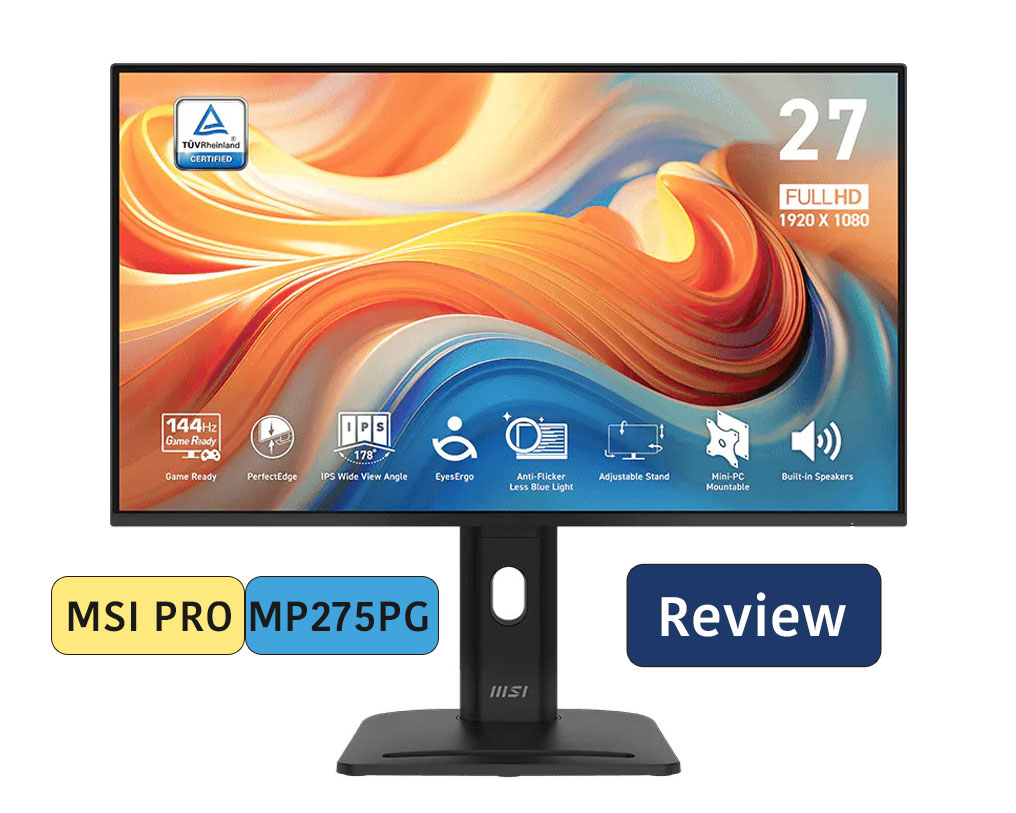
MSI PRO MP275PG Review: Is This 27-Inch Monitor Good for CAD and Revit?
Looking for an affordable 27-inch monitor for AutoCAD, Revit, or everyday office work? The MSI PRO MP275PG E14 offers a 144Hz IPS display, an ergonomic stand, and practical connectivity. But is its Full HD resolution enough for architectural drafting?
Affiliate Disclosure: This article contains affiliate links. As an Amazon Associate, I earn from qualifying purchases, at no additional cost to you.
A good monitor does more than display your drawings. It affects how comfortably you work, how easily you navigate detailed plans, and how much time you spend zooming, scrolling, and rearranging application windows.
For architects, CAD draftsmen, BIM modelers, and engineering professionals, choosing the right screen is especially important.
The MSI PRO MP275PG E14 is an interesting option for buyers looking for an affordable, versatile display. It combines a spacious 27-inch IPS panel with a 144Hz refresh rate, a height-adjustable stand, and a four-sided slim-bezel design.
Those features sound attractive for both professional work and entertainment. However, the monitor’s 1920 × 1080 resolution deserves careful consideration before buying it specifically for technical drawings.
In this MSI PRO MP275PG review, we’ll examine its specifications, practical advantages, limitations, and suitability for AutoCAD, Revit, and general productivity.
MSI PRO MP275PG E14: Quick Overview
The MSI PRO MP275PG E14 belongs to MSI’s business and productivity monitor lineup, even though it includes gaming-friendly features such as a 144Hz refresh rate and AMD FreeSync.
Unlike a basic office monitor with a fixed stand, this model offers several ergonomic adjustments that can make a real difference during long working sessions.
Key Specifications
| Feature | Specification |
|---|---|
| Model | MSI PRO MP275PG E14 |
| Display size | 27 inches |
| Panel technology | IPS |
| Resolution | 1920 × 1080 (Full HD) |
| Refresh rate | 144Hz |
| Response time | 1ms MPRT / 4ms GTG |
| Aspect ratio | 16:9 |
| Brightness | 300 nits (typical SDR specification) |
| Contrast ratio | 1500:1 |
| Adaptive sync | AMD FreeSync |
| Viewing angles | 178° horizontal / vertical |
| Stand adjustments | Height, tilt, swivel, pivot |
| Height adjustment | Up to 130 mm |
| Connectivity | HDMI 2.0, DisplayPort 1.2a, VGA |
| Built-in speakers | 2 × 2W |
| VESA mounting | 100 × 100 mm |
| Surface | Anti-glare |
| USB hub | No |
Quick Verdict: The MSI PRO MP275PG E14 is a practical option for budget-conscious office users and CAD professionals who prioritize ergonomic flexibility, smooth everyday performance, and a larger physical display. However, professionals working extensively with dense architectural drawings or detailed BIM interfaces should consider a higher-resolution monitor.
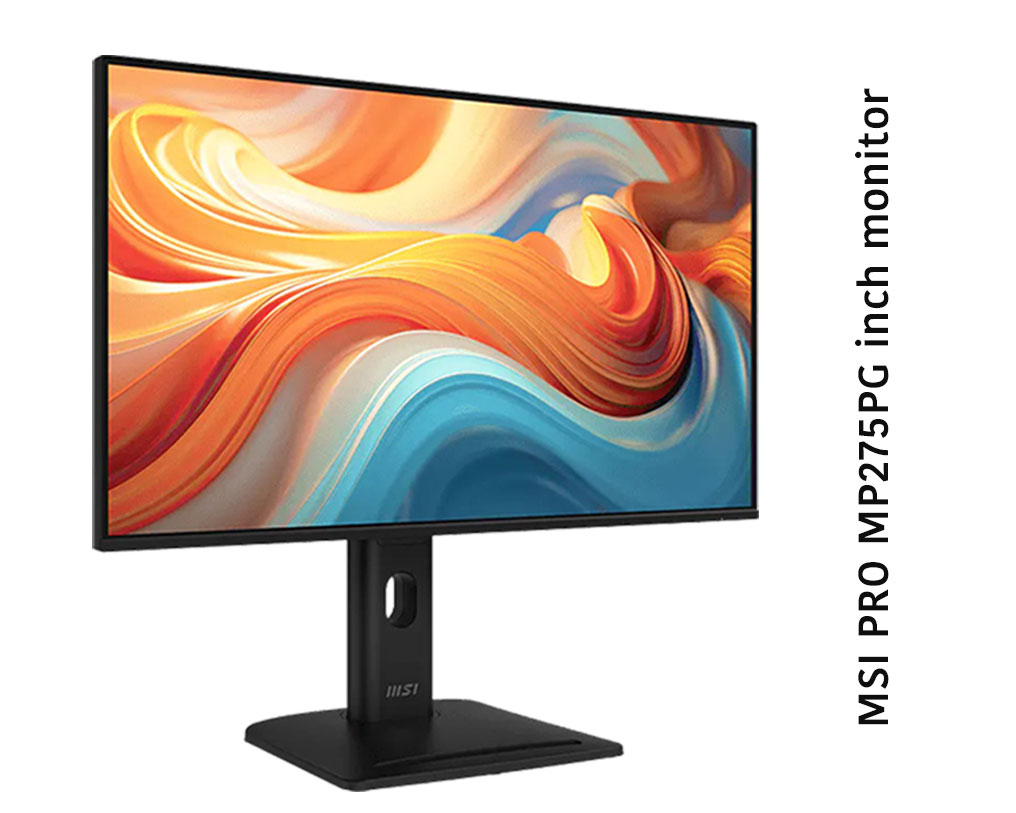
| PRODUCT CARD |
|---|
| MSI PRO MP275PG E14 — 27-inch 144Hz IPS Monitor |
| 27-inch Full HD IPS Display |
| 144Hz Refresh Rate + AMD FreeSync |
| Height-Adjustable Ergonomic Stand |
| HDMI, DisplayPort, VGA |
 |
| Affiliate link · Price and availability may change. |
1. Display Quality: Is 27-Inch Full HD Enough for CAD?
The first thing most buyers notice about the MSI PRO MP275PG E14 is its 27-inch screen.
Compared with a smaller 22-inch or 24-inch office monitor, it provides a larger physical viewing area. This can be appealing when working with architectural floor plans, electrical layouts, mechanical drawings, or project documentation.
But there is an important distinction between screen size and screen resolution.
This MSI monitor uses a 1920 × 1080 Full HD panel. That means it displays the same number of pixels as a 24-inch Full HD monitor, simply spread over a larger area.
At 27 inches, this works out to approximately 82 pixels per inch (PPI).
What does this mean for AutoCAD?
When drafting in AutoCAD, you may frequently work with:
- Architectural floor plans and elevations.
- Dimensions, leaders, and annotation text.
- Layer properties and drawing toolbars.
- Detailed construction sections.
- Multiple drawing tabs and reference documents.
The 27-inch display can make the drawing area physically larger and more comfortable to view from an appropriate distance.
However, it does not provide additional digital workspace compared with a smaller 1080p display at equivalent scaling.
Fine lines, small dimensions, and closely spaced drawing elements may also look less sharp than they would on a 27-inch QHD or 4K monitor.
For occasional drafting and general office work, Full HD may be acceptable.
For intensive professional CAD work, the sharper image and additional workspace of a higher-resolution monitor can be worth the extra investment.
Our assessment
If you’re replacing a small, older office display, the MSI PRO MP275PG E14 could be an enjoyable upgrade.
But if your main priority is displaying detailed architectural plans with maximum clarity, we would favor a 27-inch 2560 × 1440 monitor when your budget allows.
2. IPS Panel: Useful for Architectural and Engineering Work
One of the more attractive features of this monitor is its IPS panel.
IPS stands for In-Plane Switching, a display technology commonly used in productivity monitors because it provides relatively consistent colors and wide viewing angles.
The MSI PRO MP275PG E14 specifies viewing angles of up to 178 degrees horizontally and vertically.
This can be beneficial when reviewing drawings with colleagues or looking at the screen from a slightly different position.
Imagine reviewing an architectural floor plan with another designer standing beside your workstation. A wider viewing angle helps keep the picture more consistent without requiring both people to sit directly in front of the monitor.
The monitor also features an anti-glare surface, which can help reduce distracting reflections from office lighting.
What about color accuracy?
MSI lists color-gamut specifications, including approximately 93% sRGB overlap.
That makes the panel potentially suitable for general office graphics, drawings, presentations, and everyday visual work.
However, manufacturer color-gamut specifications are not the same as independently verified color accuracy.
If your workflow includes professional color grading, print-critical architectural presentations, or highly accurate material-color evaluation, you should look for a monitor with verified color-accuracy measurements and appropriate calibration support.
For ordinary 2D drafting and office productivity, the IPS panel is a welcome feature.
3. 144Hz Refresh Rate: Does It Matter for AutoCAD and Revit?
Most traditional office monitors operate at 60Hz or 75Hz.
The MSI PRO MP275PG E14 offers a refresh rate of up to 144Hz, which means the display can update its image up to 144 times per second when connected and configured appropriately.
You may notice smoother mouse movement, window dragging, and scrolling compared with a standard 60Hz display.
This can make everyday desktop interactions feel more responsive.
Benefits for CAD users
When navigating software interfaces, the higher refresh rate may improve the perceived smoothness of:
- Moving the mouse across a large drawing area.
- Scrolling through documents and schedules.
- Panning around drawings.
- Moving between application windows.
- Interacting with supported 3D viewports.
However, there is an important limitation.
A 144Hz monitor does not automatically make AutoCAD or Revit render faster. Actual application performance depends on your computer’s processor, graphics hardware, memory, model complexity, and software optimization.
If your Revit model is running at a low frame rate, a high-refresh monitor cannot independently solve that problem.
Is 144Hz necessary for drafting?
Not necessarily.
For many architectural drafting professionals, resolution and screen workspace matter more than refresh rate.
Still, if you want a monitor that feels smooth during everyday computer use and can also handle casual gaming, 144Hz is a worthwhile extra.
The included AMD FreeSync support is more relevant to compatible gaming workloads than to static 2D CAD drawings.
4. Ergonomic Stand: A Major Advantage for Long Working Hours
For people who spend several hours every day preparing drawings, monitor ergonomics should not be overlooked.
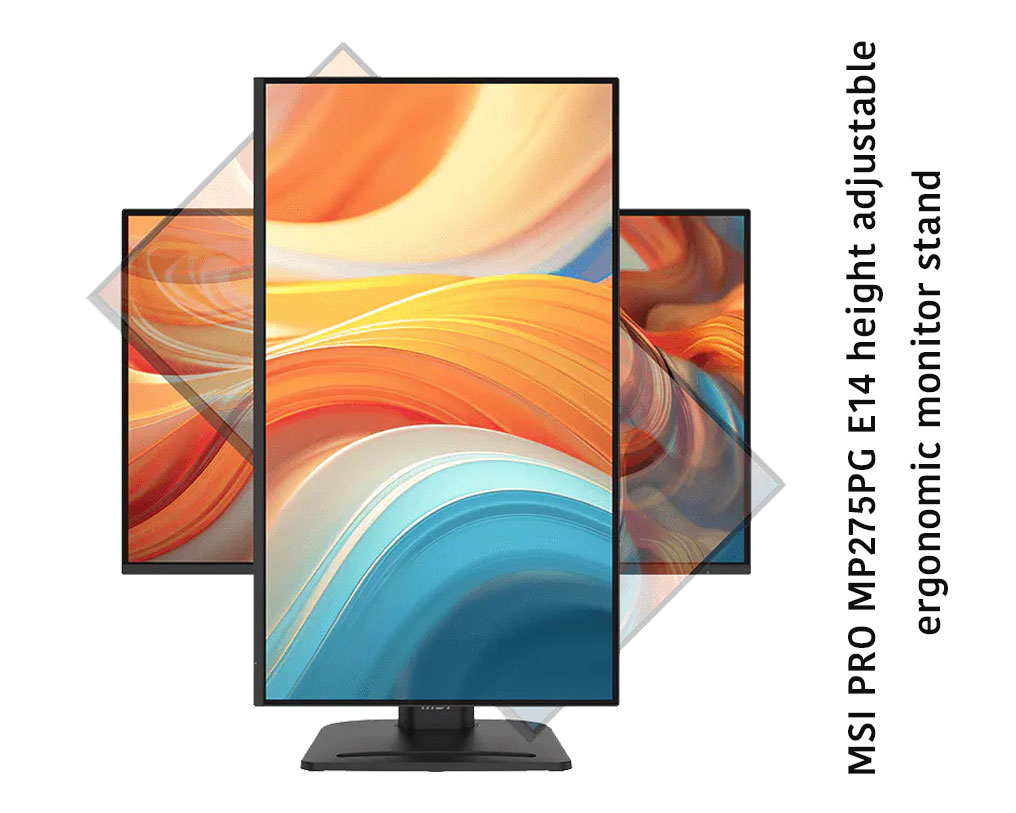
The MSI PRO MP275PG E14 includes a stand supporting height, tilt, swivel, and pivot adjustments.
According to MSI, the available adjustments include:
| Adjustment | Range |
|---|---|
| Height | 0–130 mm |
| Tilt | -5° to +20° |
| Swivel | -45° to +45° |
| Pivot | -90° to +90° |
These features allow you to position the monitor according to your desk arrangement, seating height, and viewing preferences.
Why this matters for AutoCAD users
Consider a typical architectural drafting workstation.
You might have AutoCAD open on one screen while reviewing a PDF drawing, specifications, or a quantity spreadsheet on another.
Being able to adjust screen height and orientation makes it easier to arrange a comfortable working environment.
The pivot function is particularly interesting for document-heavy workflows.
You can rotate the monitor into portrait orientation for reading lengthy specifications, schedules, or vertically arranged documents.
For most architectural drafting, landscape orientation will remain more practical.
Nevertheless, having the option adds flexibility.
The monitor also supports 100 × 100 mm VESA mounting, allowing compatible monitor arms or wall mounts.
Our assessment: The ergonomic stand is one of this model’s strongest selling points, especially when compared with entry-level monitors that offer tilt adjustment only.
5. Four-Side Slim Bezels: Good for Dual-Monitor Setups
A dual-monitor setup can be useful for CAD and BIM professionals.
For example, you might keep AutoCAD or Revit on the primary display while using the second screen for drawings, project emails, schedules, or technical reference documents.
The MSI PRO MP275PG E14 features MSI’s PerfectEdge four-sided slim-bezel design.
Slim bezels help reduce the visual gap between screens positioned side by side.
This makes the monitor attractive for users planning to build a two-screen workstation.
However, two Full HD monitors provide different benefits from one higher-resolution display.
A dual-screen setup offers physical separation between applications, while a higher-resolution monitor can provide more workspace and sharper detail on a single panel.
Your preferred workflow should determine which arrangement makes more sense.
6. Connectivity: HDMI, DisplayPort and VGA
The MSI PRO MP275PG E14 provides several useful display connections.
These include:
- HDMI 2.0
- DisplayPort 1.2a
- VGA (D-Sub)
- Audio line-in
- Headphone output
This range of connections makes the monitor suitable for various desktop and laptop configurations.
HDMI and DisplayPort both support the monitor’s Full HD resolution at up to 144Hz with suitable hardware.
VGA supports Full HD at up to 60Hz.
For a modern CAD workstation, HDMI or DisplayPort would generally be the preferred connection.
The VGA port can be helpful when connecting an older desktop computer.
One important limitation is that the monitor does not include a USB hub or USB-C video input.
If you use a laptop with only USB-C video output, you may need a compatible USB-C-to-HDMI or USB-C-to-DisplayPort adapter.
Built-in speakers
The monitor includes two 2W speakers.
These are convenient for basic system audio, online meetings, training videos, and casual use.
However, users who prioritize music, multimedia, or detailed audio reproduction may prefer dedicated speakers or headphones.
7. Eye Comfort Features for Long Office Sessions
Technical drafting often involves extended periods of concentrating on thin lines, small text, dimensions, and detailed model geometry.
MSI includes several display comfort features in the PRO MP275PG E14.
These include EyesErgo technology, Anti-Flicker features, and MSI Eye-Q Check.
The manufacturer also promotes TÜV-related eye-comfort certification for the display.
Such features can be useful, but they should not be interpreted as guarantees against eye fatigue or other health problems.
Your workstation lighting, screen brightness, viewing distance, posture, and work-break habits remain important.
For a more comfortable drafting environment, adjust the monitor brightness to match your room, avoid direct reflections, and arrange the screen at a comfortable viewing height.
8. MSI PRO MP275PG for AutoCAD, Revit and 3D Modeling
This is probably the most important section for readers of PINCAD.
Not every monitor that is good for office work is equally suitable for professional CAD and BIM applications.
Let’s look at the different use cases.
AutoCAD 2D Drafting
The MSI PRO MP275PG E14 can handle general AutoCAD interfaces, simple plans, annotations, and everyday drawing reviews.
Its IPS panel, large physical screen, and adjustable stand are useful features.
However, the Full HD resolution may feel restrictive when working with detailed construction drawings and multiple tool palettes.
Assessment: Suitable for basic and moderate 2D drafting, but higher resolution is preferable for detail-intensive work.
Revit BIM Modeling
Revit users often need space for the Properties palette, Project Browser, Ribbon interface, and modeling viewport.
At 1920 × 1080, these interface elements can occupy a substantial portion of the available workspace.
The 27-inch screen helps with physical viewing size, but it does not create extra pixels.
Assessment: Usable for Revit, but a 1440p or 4K display would generally offer a more comfortable workspace for complex BIM projects.
SketchUp and Basic 3D Modeling
For basic SketchUp modeling, conceptual design, and general 3D visualization, the monitor offers an IPS panel and smooth desktop performance.
But if your work involves high-detail materials, precise visual inspection, or demanding presentation requirements, a higher-resolution display may be more appropriate.
Assessment: Reasonable for casual and moderate 3D work, with limitations for detailed professional visualization.
Office Work and CAD Documentation
This is where the MSI PRO MP275PG E14 becomes particularly attractive.
If your daily work includes CAD drawing reviews, Microsoft Excel, PDF documents, emails, specifications, and general administration, it offers a practical balance of screen size, comfort, and smooth operation.
Assessment: A strong match for mixed office and technical-documentation workflows.
9. MSI PRO MP275PG E14: Pros and Cons
| Advantages | Limitations |
|---|---|
| Spacious 27-inch IPS screen | Full HD resolution on a 27-inch panel |
| Smooth 144Hz refresh rate | Less sharp than QHD or 4K alternatives |
| Height, tilt, swivel and pivot stand | No USB-C video input |
| Wide viewing angles | No built-in USB hub |
| Four-sided slim bezels | Not ideal for dense BIM interfaces |
| HDMI, DisplayPort and VGA | Limited built-in speaker power |
| Built-in speakers | HDR Ready does not imply premium HDR performance |
| VESA mount compatibility | Not a substitute for a color-critical professional display |
10. MSI PRO MP275PG vs 27-Inch QHD Monitor: Which Should You Buy?
If you’re buying a monitor specifically for CAD work, this comparison is worth considering.
| Feature | MSI PRO MP275PG E14 | Typical 27-inch QHD Monitor |
|---|---|---|
| Resolution | 1920 × 1080 | 2560 × 1440 |
| Pixel count | 2.07 million | 3.69 million |
| Approximate pixel density | 82 PPI | 109 PPI |
| Drawing sharpness | Moderate | Generally sharper |
| CAD interface workspace | Limited by FHD | More available pixels |
| Refresh rate | 144Hz | Varies by model |
| Ergonomic stand | Fully adjustable | Depends on model |
| Best fit | Budget mixed-use workstation | Detail-focused CAD workstation |
A QHD monitor has approximately 78% more pixels than a Full HD monitor.
That can translate into a noticeably different experience when working with complex drawings and multiple application panels, depending on display scaling.
However, a QHD monitor is not automatically better in every respect. Panel quality, ergonomics, brightness, connectivity, and cost still matter.
If your budget allows and drafting is your primary activity, prioritize resolution and ergonomic comfort.
If you want a practical monitor for office work, casual gaming, basic drafting, and general productivity, the MSI PRO MP275PG E14 remains worth considering.
11. Who Should Buy the MSI PRO MP275PG E14?
This monitor may be a good choice for:
CAD students and beginners: Users learning AutoCAD, reviewing sample DWG files, and working on relatively simple drawing projects.
Office professionals: Buyers who want a larger display with adjustable ergonomics and a smooth desktop experience.
Budget-conscious workstation users: People who value a good stand, IPS viewing angles, and flexible connectivity without requiring a high-resolution screen.
Dual-monitor users: Professionals looking for an additional screen for reference drawings, project documents, spreadsheets, or email.
Mixed work and gaming users: Anyone who wants a display for productivity alongside casual gaming that benefits from 144Hz and FreeSync support.
Who should consider another monitor?
The MSI PRO MP275PG E14 may not be the right first choice for architects and BIM specialists who regularly work with large Revit projects, detailed architectural drawings, or multiple complex software panels.
It is also less suitable for users who specifically need high pixel density, USB-C docking, or verified professional color accuracy.
In those situations, a QHD or 4K productivity monitor may be a better long-term investment.
12. Is the MSI PRO MP275PG E14 Worth Buying?
The answer depends on what matters most to you.
If you’re choosing a monitor mainly for Full HD office productivity, smoother desktop navigation, basic technical drafting, and ergonomic comfort, this MSI model offers a useful combination of features.
The adjustable stand is particularly appealing because it adds flexibility that some entry-level monitors lack.
The 144Hz refresh rate and FreeSync support also make it more versatile than a conventional 60Hz office display.
But if your monitor will be used primarily for architectural drafting and complex BIM modeling, the resolution becomes the biggest concern.
For professionals who earn their living preparing construction drawings, a sharper QHD display may justify a higher price.
Our Buying Recommendation
Consider buying the MSI PRO MP275PG E14 if:
You want an affordable, ergonomic, 27-inch monitor for mixed office work, CAD learning, drawing reviews, and casual gaming.
Consider a QHD alternative if:
You spend most of your workday creating detailed CAD drawings, managing complex Revit interfaces, or reviewing fine technical details.
Before deciding, compare the MSI’s current Amazon price with similarly sized QHD monitors. A small price difference could make a higher-resolution model the better purchase for your workflow.
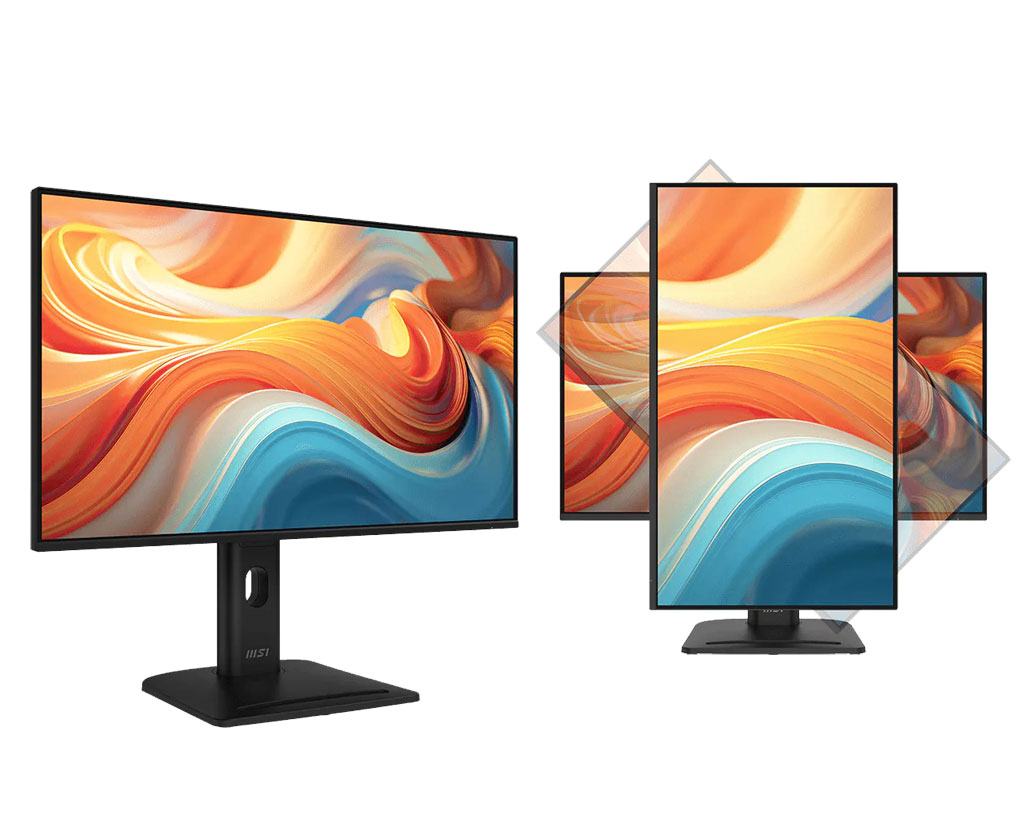
Affiliate link · See Amazon for current price, availability and delivery options.
13. Frequently Asked Questions
Is the MSI PRO MP275PG E14 good for AutoCAD?
Yes, it can be used for AutoCAD drafting, drawing reviews, and everyday technical work. However, its 1920 × 1080 resolution may feel limiting for dense drawings and extensive tool palettes. A QHD monitor is preferable if you frequently work with detailed construction documentation.
Is the MSI PRO MP275PG E14 suitable for Revit?
It is usable for Revit, particularly for learning, smaller projects, and general model reviews. However, Revit’s interface can benefit substantially from the additional workspace available on QHD or 4K monitors.
Does the MSI PRO MP275PG E14 support 144Hz?
Yes. The monitor supports up to 144Hz through compatible HDMI and DisplayPort connections. The actual selectable refresh rate depends on the connected computer and display settings.
Does this monitor have an adjustable stand?
Yes. It supports height, tilt, swivel, and pivot adjustments, making it flexible for office and multi-monitor workstations.
Is the MSI PRO MP275PG E14 a 4K monitor?
No. It is a Full HD monitor with a native resolution of 1920 × 1080 pixels.
Can I use two MSI PRO MP275PG monitors together?
Yes, provided your computer supports the required display outputs. The slim-bezel design and adjustable stands make the model suitable for side-by-side monitor arrangements.
Does it have built-in speakers?
Yes. It includes two integrated 2W speakers, which are useful for basic computer audio.
Is the MSI PRO MP275PG E14 good for gaming?
It offers a 144Hz refresh rate, AMD FreeSync support, and a 1ms MPRT specification, making it a reasonable option for compatible casual and high-refresh Full HD gaming. Actual performance depends on your computer and game.
Final Verdict: A Practical Budget Monitor with One Important Compromise
The MSI PRO MP275PG E14 is a thoughtfully equipped productivity monitor with several features that are valuable for everyday computer users.
Its 27-inch IPS display, 144Hz refresh rate, height-adjustable stand, slim bezels, and versatile connectivity make it attractive for general office work and mixed-use setups.
For AutoCAD and Revit professionals, however, there is one important compromise: Full HD resolution.
If you’re a student, beginner, or professional looking for a secondary monitor, the MSI PRO MP275PG E14 could be a sensible option at the right price.
But if you’re setting up your main architectural drafting workstation for long-term professional use, it is worth comparing this monitor with 27-inch QHD alternatives before purchasing.
Bottom line: Buy it for ergonomics, smooth performance, and everyday productivity—not because 27-inch Full HD offers the best possible workspace for CAD.
Affiliate link · Prices and availability are subject to change.
About PINCAD
PINCAD provides CAD blocks, Revit resources, technical drawing references, and practical design information for architecture, engineering, and construction professionals.
Explore our CAD Block Library to find useful DWG resources for your next design project.
Research Sources
- Amazon Product Listing: https://link.amazon/B0iuSwxjw
Editorial note: This is a specification-based buying review informed by official product documentation. It is not a hands-on laboratory test or a claim of personal product ownership.
